Generating cdrouter-diag Output
cdrouter-diag is a system diagnostic tool that is installed with CDRouter.
It collects system and diagnostic information about your CDRouter system and
NTA hardware platform into a single cdrouter-diag.tar.gz archive. The QA
Cafe Support team may ask for this archive to help troubleshoot an issue.
You can generate the archive from the CDRouter web UI or from the command line on your NTA. Both methods produce the same file.
Generate the archive from the web UI
- Log in to CDRouter as a user with administrator privileges.
- Click the name of the logged-in user in the upper right corner and select System from the dropdown menu.
- On the Basic Info tab, click Download cdrouter-diag.tar.gz.
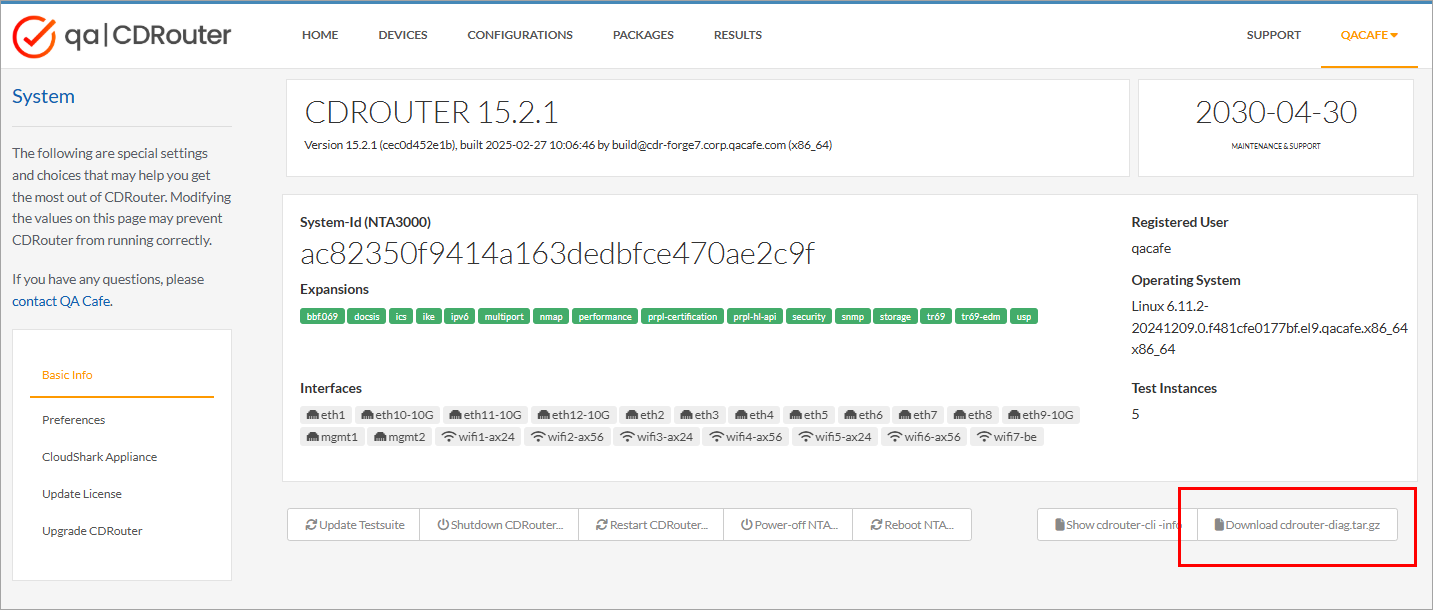
CDRouter will gather the diagnostic information and your browser will
download cdrouter-diag.tar.gz when it’s ready. This may take a minute or
two.
See the CDRouter System Page article for more information about the System page.
Generate the archive from the command line
- Log in to your NTA as the
rootuser, either locally or remotely via SSH. See the NTA3000 Quick Start Guide for details about accessing the NTA. - Run
cdrouter-diag:
[root@nta3000 ~]# cdrouter-diag

Please wait while the system diagnostic information is gathered...

The system diagnostic information has been saved to the following file:

-rw-r--r-- 1 root root 389568 Mar 24 14:37 /tmp/cdrouter-diag.tar.gz

Please verify its contents before sending it to support@qacafe.com
By default, the archive is saved to /tmp/cdrouter-diag.tar.gz. Use the -o
option to save it somewhere else:
[root@nta3000 ~]# cdrouter-diag -o /root/cdrouter-diag.tar.gz
Copy the archive from the NTA to your computer with scp or a similar tool
before sending it to QA Cafe. For example:
scp root@<NTA IP address>:/tmp/cdrouter-diag.tar.gz .
Send the archive to QA Cafe Support
If the archive is small enough, attach it to an email to support@qacafe.com or reply to your existing support ticket with the archive attached.
The archive includes system logs and can be too large to send by email. In that case, upload it to QA Cafe using Hightail:
- Go to https://hightail.com/u/CDRouter.
- Add the
cdrouter-diag.tar.gzfile and enter your email address. - In the message, include a reference to the subject line of your support ticket and any other information to help the Support team match the upload to your request.
- Send the upload.
Once the upload is complete, let the Support team know by replying to your support ticket.
