Parallel Testing: Running Multiple Packages at Once
Overview
CDRouter can run multiple test packages at the same time, with each package running on its own test instance against its own DUT. Parallel testing lets a single CDRouter system do more testing in less time. Common reasons to use it include:
-
Reduce test cycle time. Split a large package (or test suite) into several smaller packages, and run them at the same time against separate physical DUTs of the same make, model, and firmware version. Instead of running everything sequentially against a single DUT, tests finish in a fraction of the total time.
-
Test multiple hardware or firmware versions at once. Connect two or more DUTs to the CDRouter system and run the same package against each simultaneously. These DUTs can be different hardware revisions, firmware builds, or units of the same model. This is useful when validating a new firmware release across hardware variants, or comparing results between builds, without waiting for each test run to finish before starting the next.
-
Expand test coverage. Since more testing completes in the same amount of wall-clock time, teams can add packages, test cases, or configurations to a regular test cycle without lengthening how long that cycle takes to run.
-
Run long-duration testing alongside day-to-day testing. Run a stability or soak package on one test instance while continuing conformance and interoperability testing on others, so long-running tests don’t block or delay routine testing. See Parallel Stability and Memory Testing below.
Requirements
Running packages in parallel has three requirements:
-
Hardware. Parallel testing is supported on NTA1000v5 and newer systems, including the NTA3000.
-
Test instances. Each package that runs at the same time needs its own test instance. Every CDRouter system includes one (1) test instance by default. Additional test instances must be purchased and installed on the system, up to a maximum of 5 test instances per system. See the QA Cafe license FAQ for more information about test instances and how to purchase additional ones.
-
Separate physical interfaces. Two packages can only run at the same time if their CDRouter configurations don’t use any of the same physical interfaces on the CDRouter system. There are a few exceptions and additional rules, described in Interface Sharing Rules below.
How CDRouter Schedules Packages
After clicking the Launch button for a package (or launching it via the
API), CDRouter will do one of three things:
- Run the package, if no other packages are currently running.
- Run the package, if its interfaces don’t conflict with those of any currently running package (see Interface Sharing Rules) and there is an available test instance.
- Add the package to the Job Queue, if its interfaces conflict with those of a currently running package or if there are no more available test instances.
When a test instance becomes available and there are packages in the Job Queue, CDRouter will select the next package whose interfaces don’t conflict with any currently running package. Therefore, the Job Queue does not necessarily reflect the order in which packages will be run.
Scheduling packages using the package scheduler will result in the above behavior at the time the package is scheduled to start.
If a CDRouter system includes only one test instance, packages will be run sequentially in the order they are launched or scheduled.
Setting Up Parallel Testing
Setting up parallel testing takes three steps:
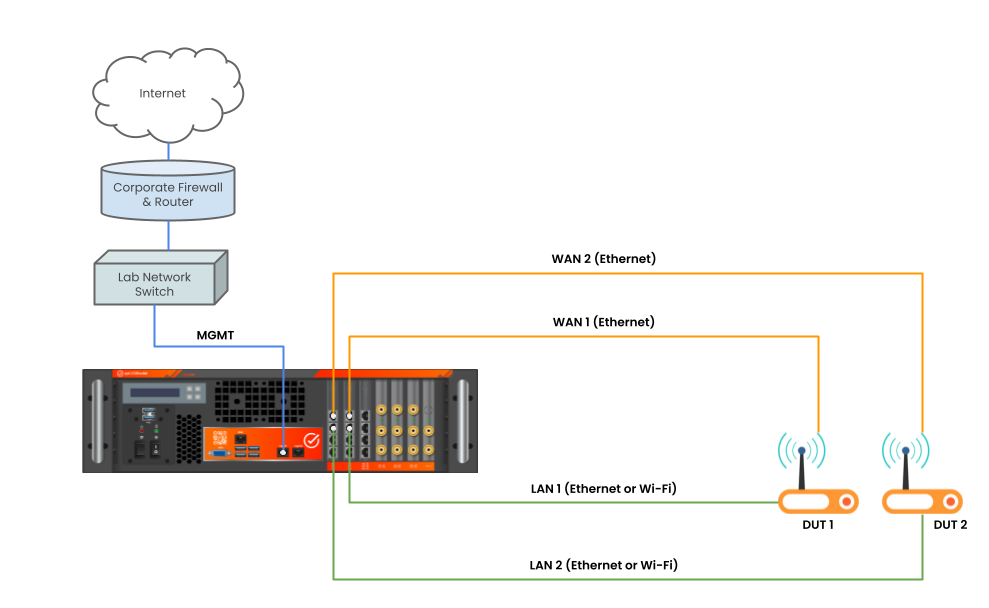
- Connect each DUT to its own physical interfaces. Give each device a dedicated WAN and LAN (and any other interfaces its testing requires) on the CDRouter system. No two DUTs should share a physical port.
- Create a separate CDRouter configuration for each DUT, with each configuration referencing only the interfaces connected to that DUT.
- Launch a package against each configuration. As long as an available test instance exists and the configurations don’t share physical interfaces, CDRouter runs the packages at the same time instead of adding them to the Job Queue.
Basic Parallel Test Setup
The diagram below shows the simplest version of this setup: two DUTs, each connected directly to its own dedicated WAN and LAN interfaces on the CDRouter system, so their packages can run in parallel:
Advanced Parallel Test Setup
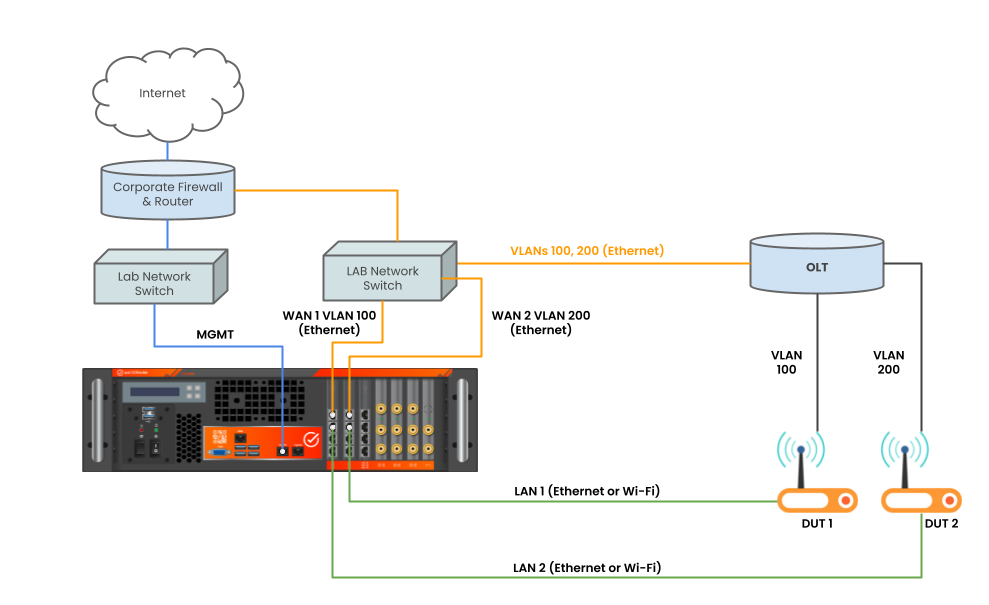
Some test environments require WAN traffic to pass through an access concentrator, such as an OLT or CMTS, before reaching each DUT. You can still give each DUT its own dedicated CDRouter interfaces in this case by separating their WAN traffic onto different VLANs. The diagram below shows an example of this setup for a GPON environment using an OLT:
Interface Sharing Rules
In general, packages that use any of the same physical interfaces cannot run at the same time. The following rules refine that:
| Interface type | Rule |
|---|---|
| VLAN | CDRouter compares physical interfaces, not VLAN interfaces. Two configurations using different VLANs on the same physical port conflict, so each DUT must use its own physical ports. |
| ICS | Packages may share an ICS interface, as long as all of their other interfaces are separate and their WAN ISP networks don’t overlap. A package can’t use another package’s ICS interface for anything else, such as its WAN or LAN. |
| Wireless | Packages using wireless interfaces may run in parallel, as long as they use different wireless interfaces. |
| Attenuator | A package that uses an RF attenuator can’t run alongside any other wireless package. See Attenuators below. |
ICS
When CDRouter’s ICS (Internet Connection Sharing) feature is enabled, the ICS interface connects CDRouter’s simulated WAN to an external network. Several packages can share the same ICS interface at the same time, as long as all of their other interfaces are separate. A package can’t use another package’s ICS interface for anything else, such as its WAN or LAN, while that package is running.
Packages sharing an ICS interface must also use non-overlapping WAN ISP networks, so that traffic for each DUT can be routed back to the correct test instance.
IPv4 Configuration Example for ICS
To configure non-overlapping WAN ISP networks, give each configuration that
shares an ICS interface its own unique wanIspIp, wanIspAssignIp, and wanIspMask testvars, so that
CDRouter’s simulated ISP network for each DUT doesn’t overlap with any
other. For example, the configuration for DUT 1 might set:
testvar wanIspIp                         202.254.1.1
testvar wanIspAssignIp                   202.254.1.2
testvar wanIspMask                       255.255.255.0
while the configuration for DUT 2, sharing the same ICS interface, uses a different subnet:
testvar wanIspIp                         202.254.2.1
testvar wanIspAssignIp                   202.254.2.2
testvar wanIspMask                       255.255.255.0
IPv6 Configuration Example for ICS
IPv6 has a similar set of constraints: each configuration also needs its own
non-overlapping WAN network (ipv6WanIspIp, ipv6WanIspAssignIp, and ipv6WanIspPrefixLen) and
delegated LAN prefix (dhcpv6WanAssignPrefix and dhcpv6WanAssignPrefixLen). For example, the configuration for
DUT 1 might set:
testvar ipv6WanIspIp                     3001::1
testvar ipv6WanIspAssignIp               3001::2
testvar ipv6WanIspPrefixLen              64
testvar dhcpv6WanAssignPrefix            3001:dddd::
testvar dhcpv6WanAssignPrefixLen         48
while the configuration for DUT 2, sharing the same ICS interface, uses different values:
testvar ipv6WanIspIp                     3002::1
testvar ipv6WanIspAssignIp               3002::2
testvar ipv6WanIspPrefixLen              64
testvar dhcpv6WanAssignPrefix            3002:dddd::
testvar dhcpv6WanAssignPrefixLen         48
Attenuators
A package uses an attenuator when its configuration sets supportsAttenuator to yes, as in Wi-Fi Range vs
Rate testing. CDRouter
schedules these packages more strictly than other wireless packages:
- While a package using an attenuator is running, no other package that uses a wireless interface or an attenuator can start.
- While any package using a wireless interface is running, a package using an attenuator can’t start. It stays in the Job Queue until all running wireless packages have finished.
Packages that use only wired interfaces are unaffected and can run alongside a package using an attenuator.
Routed Setups
If your test environment uses a routed setup, such as Scenario A or Scenario B described in Connecting CDRouter to a GPON Network, the Reserved Address Block and WAN networks used by each configuration you want to run in parallel must all be unique. This is because a static route pointing to CDRouter’s WAN IP must be added on either the access concentrator (OLT, CMTS, etc.) or an intermediate router in the lab network. Overlapping networks between parallel configurations would create conflicting routes, since a router can only route a given network to one next-hop at a time.
Parallel Stability and Memory Testing
The Stability and Memory
expansion, added
in CDRouter 16.8, runs each stability test for stabilityDuration seconds, one hour by default and up to one week. A package containing
many stability tests can take days to complete. On a system with a single
test instance, that package blocks every other package for the entire run.
Parallel testing makes long-duration testing much more practical:
-
Dedicate a DUT to soak testing. Connect a DUT to its own interfaces and run a stability package against it on one test instance, while regression and conformance testing continue on the remaining test instances.
-
Split the stability suite across identical DUTs. Divide the Stability and Memory modules into several packages, such as one for throughput stability and one for memory stability, and run each against a separate unit of the same model and firmware. The full suite finishes in a fraction of the time it would take on a single DUT.
-
Compare firmware builds over the same soak period. Run the same stability package against two firmware builds at the same time. Both DUTs see the same duration and test conditions, which makes it easier to tell whether a memory leak or throughput drop is new in a build.
When planning parallel stability testing, keep the following in mind:
- The multi-client and Wi-Fi stability modules need additional LAN interfaces, including wireless interfaces, for each DUT. Make sure each configuration has enough dedicated interfaces for the modules it runs.
- The memory stability modules read the DUT’s memory over USP or CWMP, so each configuration needs a working USP or TR-069 setup for its DUT.
- Before committing a test instance to a run that lasts hours or days, confirm each configuration works with a short run. The Fail Fast Smoke Check example in the Stability and Memory User Guide uses a 10 minute duration and ends a test on its first fault.
Planning High-Volume Testing
When running many packages in parallel, consider whether any package might block others from running because of the Interface Sharing Rules above. Packages that commonly cause inadvertent blockages include those that use multiport, wireless, attenuators, ICS, or VLANs. Queue those packages last, or run them separately, so that parallel tests can finish running on all available test instances.
Long-running packages, such as Stability and Memory packages, occupy a test instance for their entire duration. Plan which test instances and interfaces are reserved for long-running testing so the remaining instances stay available for shorter runs.
